Microsoft
Note
Entra ID was formerly known as Azure AD.
- Entra ID App Registration Auth using OIDC
- Entra ID SAML Enterprise App Auth using Dex
- Entra ID App Registration Auth using Dex
Entra ID App Registration Auth using OIDC
Configure a new Entra ID App registration
Add a new Entra ID App registration
- From the
Microsoft Entra ID>App registrationsmenu, choose+ New registration - Enter a
Namefor the application (e.g.Argo CD). - Specify who can use the application (e.g.
Accounts in this organizational directory only). - Enter Redirect URI (optional) as follows (replacing
my-argo-cd-urlwith your Argo URL), then chooseAdd.- Platform:
Web - Redirect URI: https://
<my-argo-cd-url>/auth/callback
- Platform:
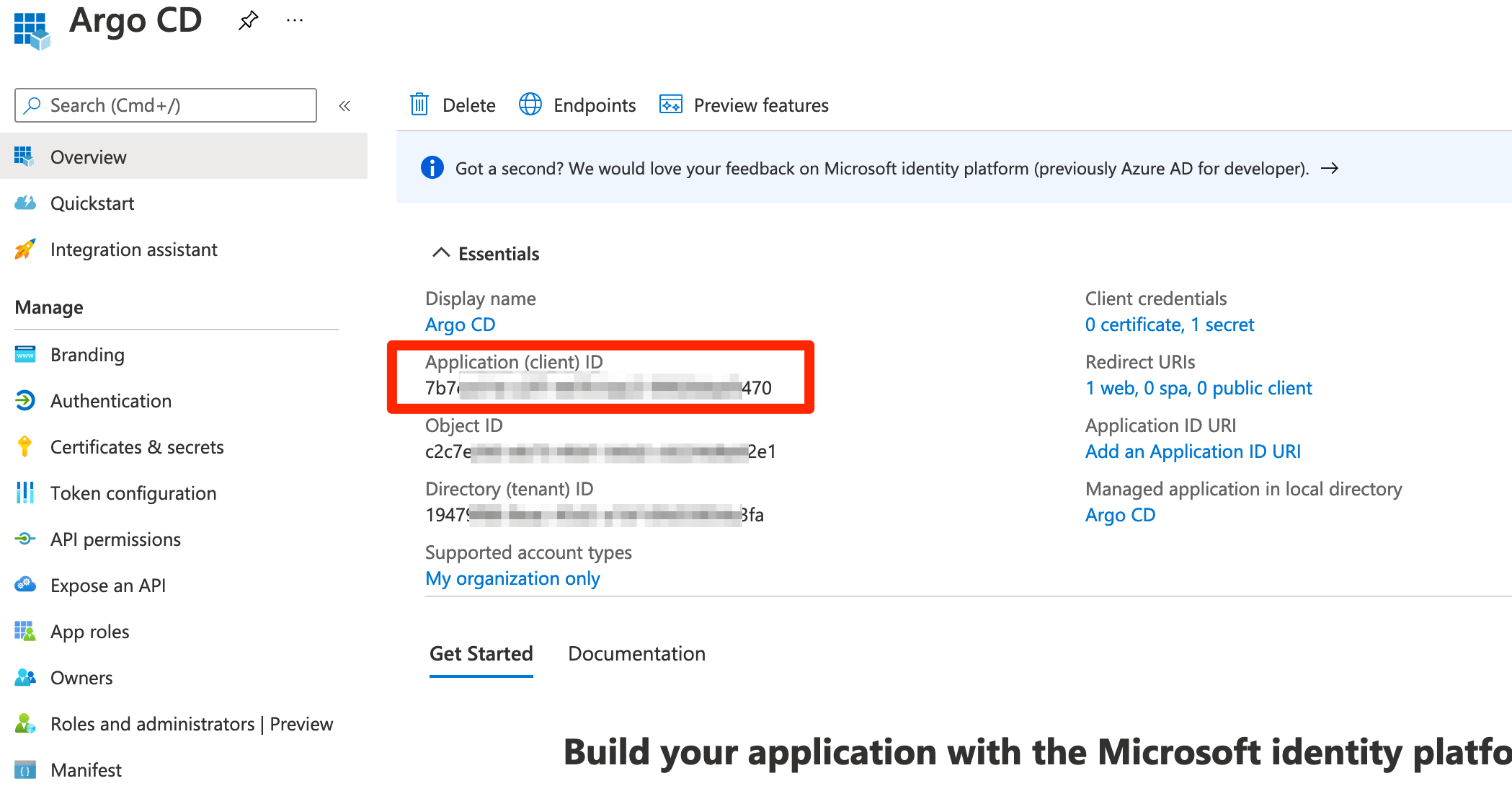
- When registration finishes, the Azure portal displays the app registration's Overview pane. You see the Application (client) ID.
Configure additional platform settings for ArgoCD CLI
- In the Azure portal, in App registrations, select your application.
- Under Manage, select Authentication.
- Under Platform configurations, select Add a platform.
- Under Configure platforms, select the "Mobile and desktop applications" tile. Use the below value. You shouldn't change it.
- Redirect URI:
http://localhost:8085/auth/callback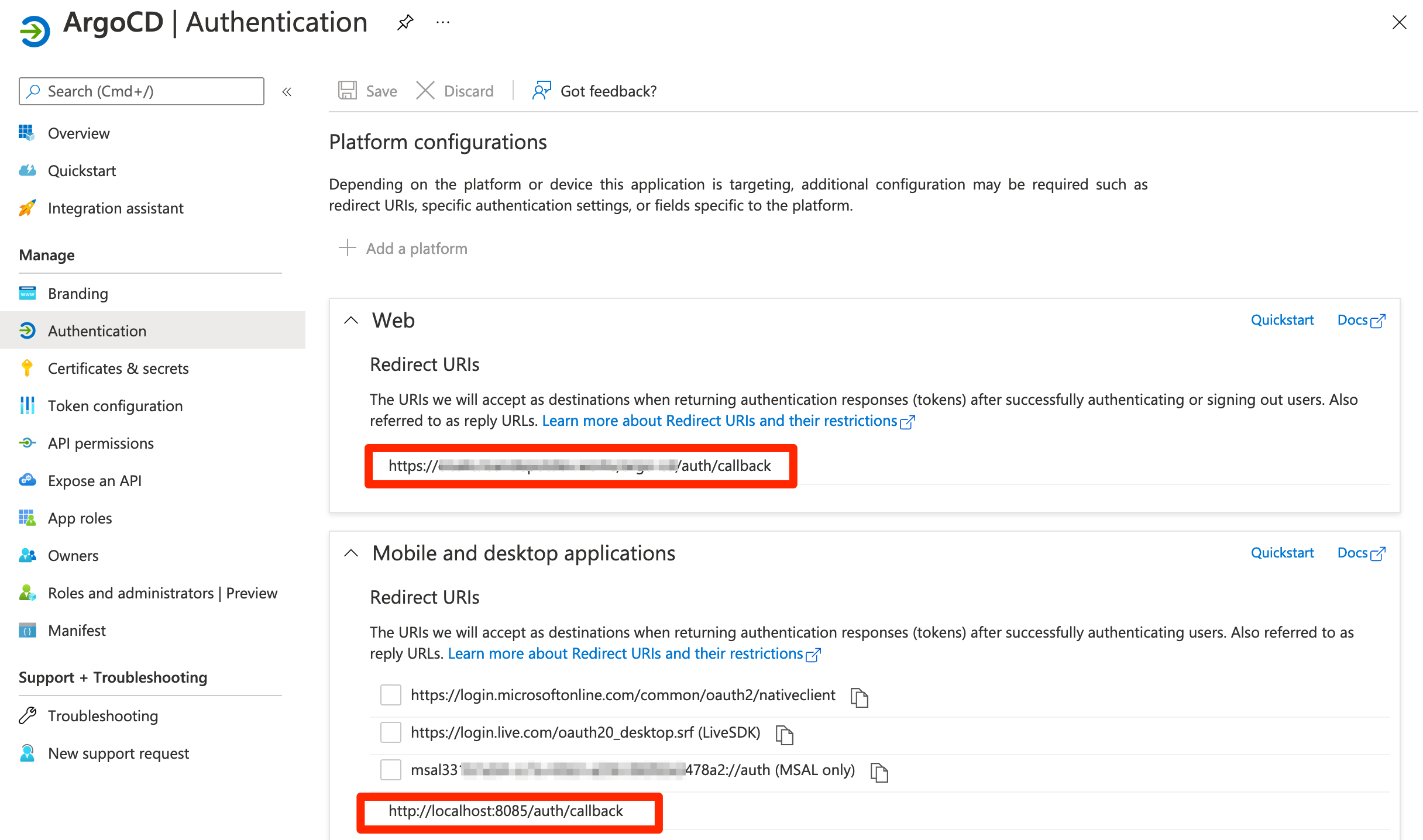
- Redirect URI:
Add credentials a new Entra ID App registration
Using Workload Identity Federation (Recommended)
- Label the Pods: Add the
azure.workload.identity/use: "true"label to theargocd-serverpods. - Add Annotation to Service Account: Add
azure.workload.identity/client-id: "$CLIENT_ID"annotation to theargocd-serverservice account using the details from application created in previous step. - From the
Certificates & secretsmenu, navigate toFederated credentials, then choose+ Add credential - Choose
Federated credential scenarioasKubernetes Accessing Azure resources - Enter Cluster Issuer URL, refer to retrieve the OIDC issuer URL documentation
- Enter namespace as the namespace where the argocd is deployed
- Enter service account name as
argocd-server - Enter a unique name
- Click Add.
Using Client Secret
- From the
Certificates & secretsmenu, choose+ New client secret - Enter a
Namefor the secret (e.g.ArgoCD-SSO).- Make sure to copy and save generated value. This is a value for the
client_secret.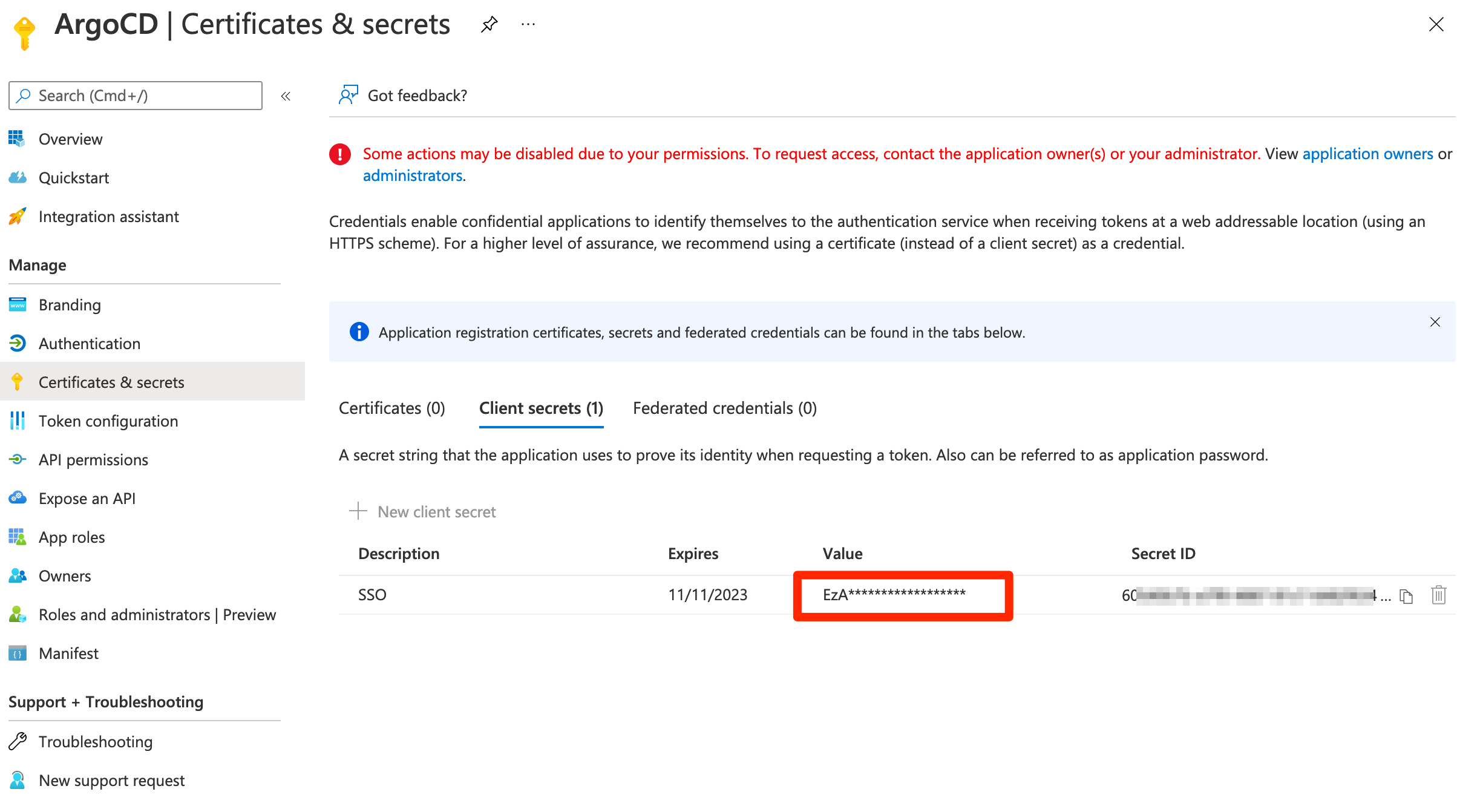
- Make sure to copy and save generated value. This is a value for the
Setup permissions for Entra ID Application
- From the
API permissionsmenu, choose+ Add a permission - Find
User.Readpermission (underMicrosoft Graph) and grant it to the created application: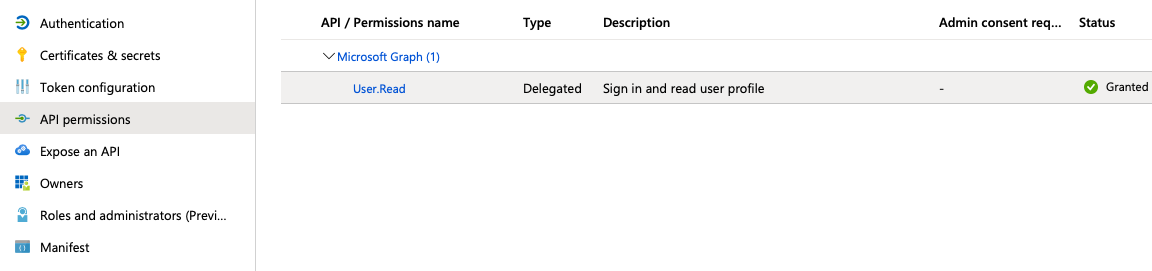
- From the
Token Configurationmenu, choose+ Add groups claim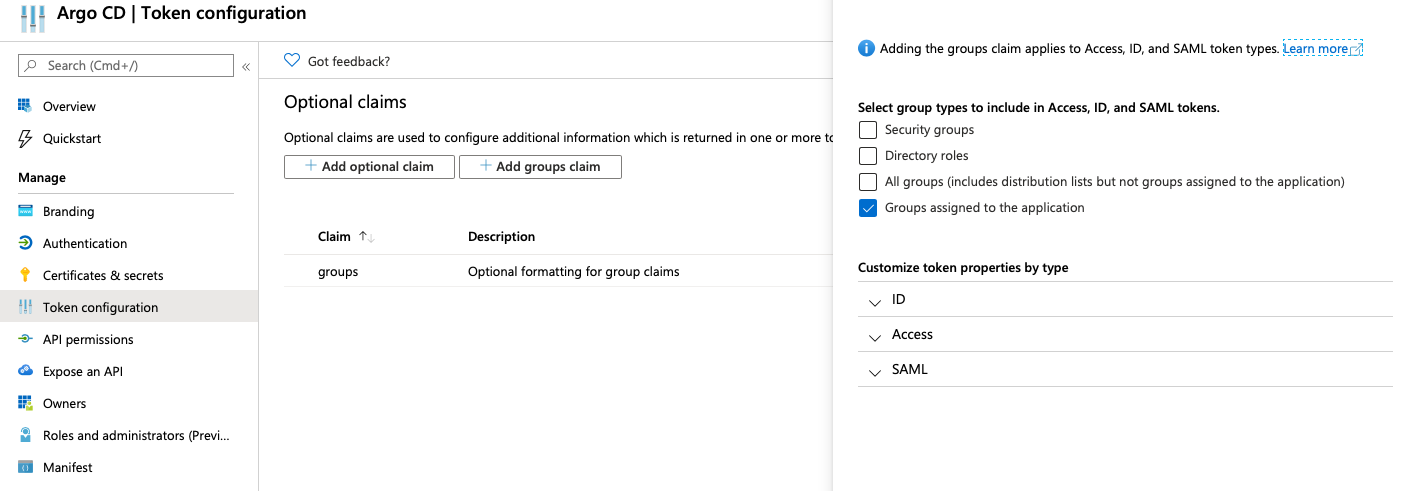
Associate an Entra ID group to your Entra ID App registration
- From the
Microsoft Entra ID>Enterprise applicationsmenu, search the App that you created (e.g.Argo CD).- An Enterprise application with the same name of the Entra ID App registration is created when you add a new Entra ID App registration.
- From the
Users and groupsmenu of the app, add any users or groups requiring access to the service.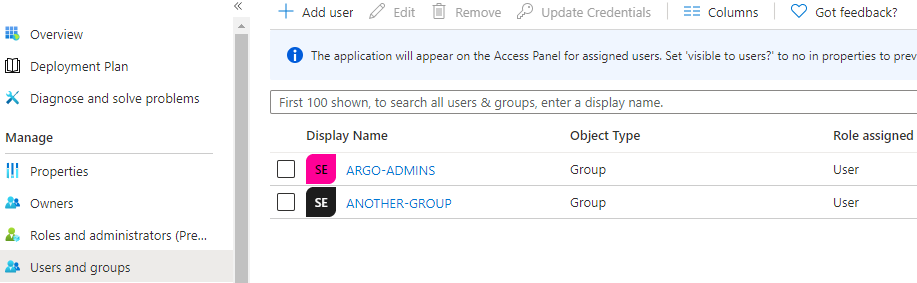
Configure Argo to use the new Entra ID App registration
-
Edit
argocd-cmand configure thedata.oidc.configanddata.urlsection:ConfigMap -> argocd-cm data: url: https://argocd.example.com/ # Replace with the external base URL of your Argo CD oidc.config: | name: Azure issuer: https://login.microsoftonline.com/{directory_tenant_id}/v2.0 clientID: {azure_ad_application_client_id} clientSecret: $oidc.azure.clientSecret // if using client secret for authentication azure: useWorkloadIdentity: true // if using azure workload identity for authentication requestedIDTokenClaims: groups: essential: true value: "ApplicationGroup" requestedScopes: - openid - profile - email -
Skip this step if using azure workload identity. Edit
argocd-secretand configure thedata.oidc.azure.clientSecretsection:Secret -> argocd-secret data: oidc.azure.clientSecret: {client_secret | base64_encoded} -
Edit
argocd-rbac-cmto configure permissions. Use group ID from Azure for assigning roles RBAC ConfigurationsConfigMap -> argocd-rbac-cm policy.default: role:readonly policy.csv: | p, role:org-admin, applications, *, */*, allow p, role:org-admin, clusters, get, *, allow p, role:org-admin, repositories, get, *, allow p, role:org-admin, repositories, create, *, allow p, role:org-admin, repositories, update, *, allow p, role:org-admin, repositories, delete, *, allow g, "84ce98d1-e359-4f3b-85af-985b458de3c6", role:org-admin -
Mapping role from jwt token to argo.
If you want to map the roles from the jwt token to match the default roles (readonly and admin) then you must change the scope variable in the rbac-configmap.policy.default: role:readonly policy.csv: | p, role:org-admin, applications, *, */*, allow p, role:org-admin, clusters, get, *, allow p, role:org-admin, repositories, get, *, allow p, role:org-admin, repositories, create, *, allow p, role:org-admin, repositories, update, *, allow p, role:org-admin, repositories, delete, *, allow g, "84ce98d1-e359-4f3b-85af-985b458de3c6", role:org-admin scopes: '[groups, email]'
Refer to operator-manual/argocd-rbac-cm.yaml for all of the available variables.
Azure AD Groups Overflow Resolution (200+ Groups)
Overview
Azure AD / Entra ID access tokens can contain a maximum of 200 groups. When a user belongs to more
than 200 groups, Azure AD sets overflow indicators (_claim_names and _claim_sources) in the ID
token instead of including the groups claim. This causes users to have no group-based RBAC
permissions in Argo CD.
Argo CD can automatically detect this overflow and resolve it by calling the Microsoft Graph API to fetch the complete list of group memberships.
Prerequisites
- The Azure AD app registration must have the User.Read delegated permission. This is granted by
default when following the Setup permissions steps
above. Azure AD automatically includes approved permissions in the access token's
scpclaim without needing to explicitly request them inrequestedScopes.
Configuration
Add the following to your argocd-cm ConfigMap under oidc.config:
oidc.config: |
  name: Azure
  issuer: https://login.microsoftonline.com/{tenant_id}/v2.0
  clientID: {client_id}
  clientSecret: $oidc.azure.clientSecret
  requestedScopes:
    - openid
    - profile
    - email
  azure:
    enableUserGroupOverageClaim: true
Configuration Options
| Setting | Default | Description |
|---|---|---|
enableUserGroupOverageClaim |
false |
Enable automatic overflow resolution via Graph API |
graphApiEndpoint |
https://graph.microsoft.com/v1.0 |
Graph API base URL (override for sovereign clouds) |
userGroupOverageClaimCacheExpiration |
Token expiry | Cache duration for resolved groups (e.g., 10m) |
Sovereign Clouds
For Azure Government, Azure China, or other sovereign clouds, override the Graph API endpoint:
azure:
  enableUserGroupOverageClaim: true
  graphApiEndpoint: https://graph.microsoft.us/v1.0  # Azure Government
How It Works
- Detection: Argo CD checks the ID token for overflow indicators (
_claim_namesand_claim_sources). - Scope Check: Verifies the access token contains the
User.Readscope. - Graph API Call: Calls
POST /me/getMemberGroupsto fetch all group IDs (up to 2048). Only security-enabled groups are returned (not distribution lists), which is appropriate for RBAC evaluation. - Caching: Encrypts and caches the resolved groups for the duration of the token or a configured expiration.
- RBAC Integration: The resolved group IDs are added to the user's claims for RBAC evaluation.
Troubleshooting
| Symptom | Cause | Solution |
|---|---|---|
| User still has 0 groups despite 200+ memberships | Feature not enabled | Set enableUserGroupOverageClaim: true |
| Logs show "access token missing User.Read scope" | Missing permission | Verify the User.Read delegated permission is granted on the app registration in Azure AD |
| Logs show "insufficient permissions for Graph API" | App permission denied | Verify app permissions in Azure AD |
| Logs show "no access token cached" | Token expired | User must re-authenticate |
Warning
This feature depends on the Microsoft Graph API being reachable at authentication time. If the Graph API is unavailable (network issues, outage, etc.), users with 200+ group memberships will be unable to authenticate until service is restored. Users with fewer than 200 groups are unaffected since their groups are included directly in the ID token.
Graph API failures (missing scope, permission denied, network errors) will cause authentication to fail with a 401 Unauthorized response. This is consistent with how the UserInfo endpoint behaves. Only enable this feature if you need group-based RBAC for users with 200+ groups, and ensure the prerequisites above are met to avoid authentication issues.
Entra ID SAML Enterprise App Auth using Dex
Configure a new Entra ID Enterprise App
- From the
Microsoft Entra ID>Enterprise applicationsmenu, choose+ New application - Select
Non-gallery application - Enter a
Namefor the application (e.g.Argo CD), then chooseAdd - Once the application is created, open it from the
Enterprise applicationsmenu. - From the
Users and groupsmenu of the app, add any users or groups requiring access to the service. - From the
Single sign-onmenu, edit theBasic SAML Configurationsection as follows (replacingmy-argo-cd-urlwith your Argo URL):- Identifier (Entity ID): https://
<my-argo-cd-url>/api/dex/callback - Reply URL (Assertion Consumer Service URL): https://
<my-argo-cd-url>/api/dex/callback - Sign on URL: https://
<my-argo-cd-url>/auth/login - Relay State:
<empty> - Logout Url:
<empty>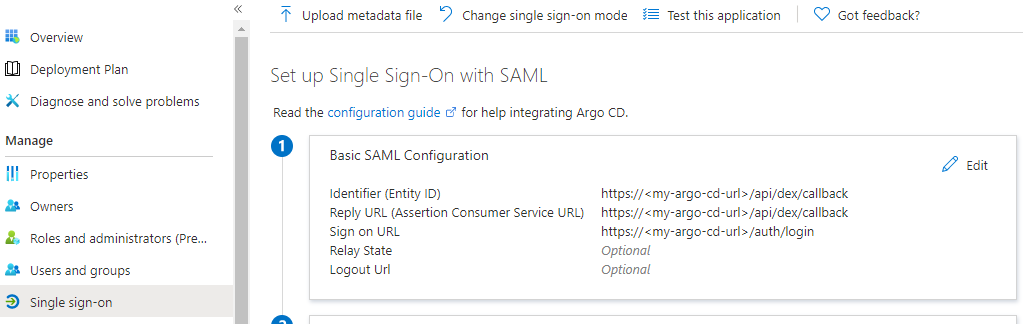
- Identifier (Entity ID): https://
- From the
Single sign-onmenu, edit theUser Attributes & Claimssection to create the following claims:+ Add new claim| Name: email | Source: Attribute | Source attribute: user.mail+ Add group claim| Which groups: All groups | Source attribute: Group ID | Customize: True | Name: Group | Namespace:<empty>| Emit groups as role claims: False- Note: The
Unique User Identifierrequired claim can be left as the defaultuser.userprincipalname
- From the
Single sign-onmenu, download the SAML Signing Certificate (Base64)- Base64 encode the contents of the downloaded certificate file, for example:
$ cat ArgoCD.cer | base64- Keep a copy of the encoded output to be used in the next section.
- From the
Single sign-onmenu, copy theLogin URLparameter, to be used in the next section.
Configure Argo to use the new Entra ID Enterprise App
-
Edit
argocd-cmand add the followingdex.configto the data section, replacing thecaData,my-argo-cd-urlandmy-login-urlyour values from the Entra ID App:data: url: https://my-argo-cd-url dex.config: | logger: level: debug format: json connectors: - type: saml id: saml name: saml config: entityIssuer: https://my-argo-cd-url/api/dex/callback ssoURL: https://my-login-url (e.g. https://login.microsoftonline.com/xxxxx/a/saml2) caData: | MY-BASE64-ENCODED-CERTIFICATE-DATA redirectURI: https://my-argo-cd-url/api/dex/callback usernameAttr: email emailAttr: email groupsAttr: Group -
Edit
argocd-rbac-cmto configure permissions, similar to example below.- Use Entra ID
Group IDsfor assigning roles. - See RBAC Configurations for more detailed scenarios.
# example policy
policy.default: role:readonly
policy.csv: |
   p, role:org-admin, applications, *, */*, allow
   p, role:org-admin, clusters, get, *, allow
   p, role:org-admin, repositories, get, *, allow
   p, role:org-admin, repositories, create, *, allow
   p, role:org-admin, repositories, update, *, allow
   p, role:org-admin, repositories, delete, *, allow
   g, "84ce98d1-e359-4f3b-85af-985b458de3c6", role:org-admin # (azure group assigned to role)
- Use Entra ID
Entra ID App Registration Auth using Dex
Configure a new AD App Registration, as above.
Then, add the dex.config to argocd-cm:
ConfigMap -> argocd-cm

data:
    dex.config: |
      connectors:
      - type: microsoft
        id: microsoft
        name: Your Company GmbH
        config:
          clientID: $MICROSOFT_APPLICATION_ID
          clientSecret: $MICROSOFT_CLIENT_SECRET
          redirectURI: http://localhost:8080/api/dex/callback
          tenant: ffffffff-ffff-ffff-ffff-ffffffffffff
          groups:
            - DevOps
Validation
Log in to ArgoCD UI using SSO
- Open a new browser tab and enter your ArgoCD URI: https://
<my-argo-cd-url>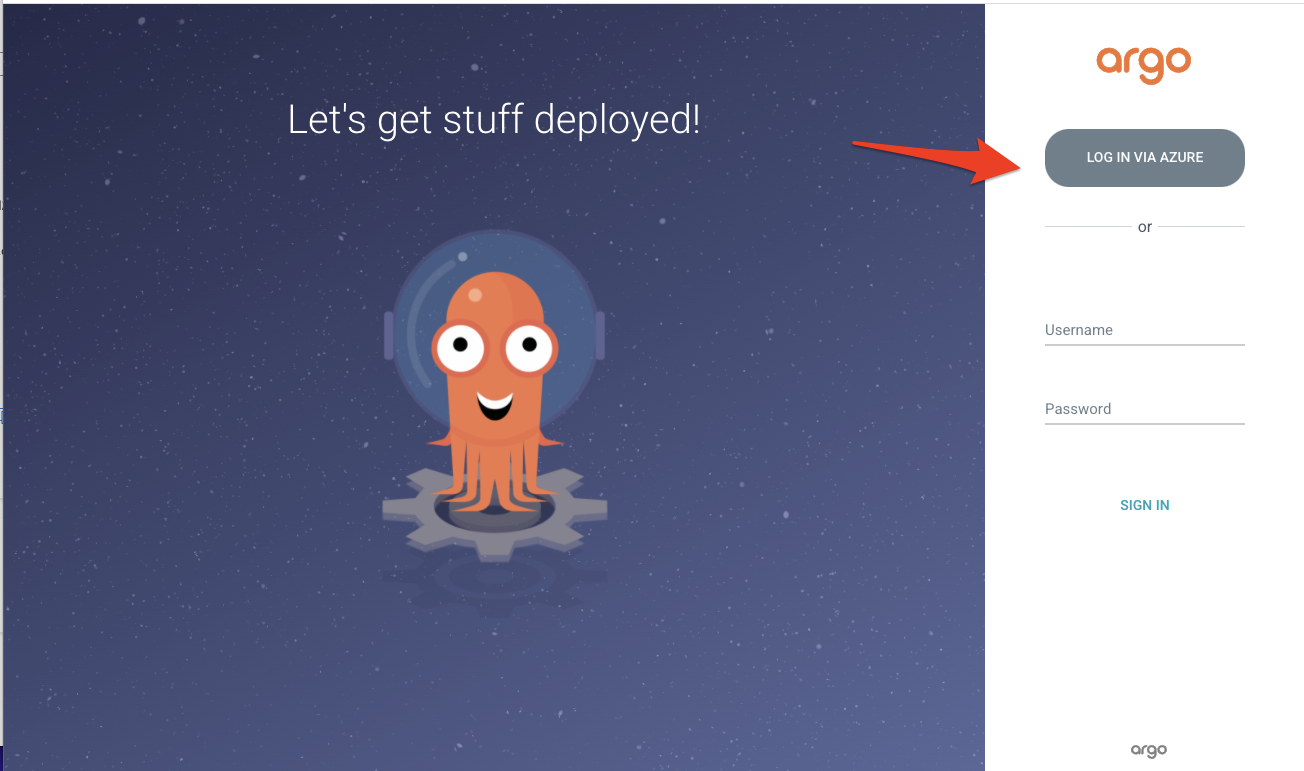
- Click
LOGIN VIA AZUREbutton to log in with your Microsoft Entra ID account. You’ll see the ArgoCD applications screen.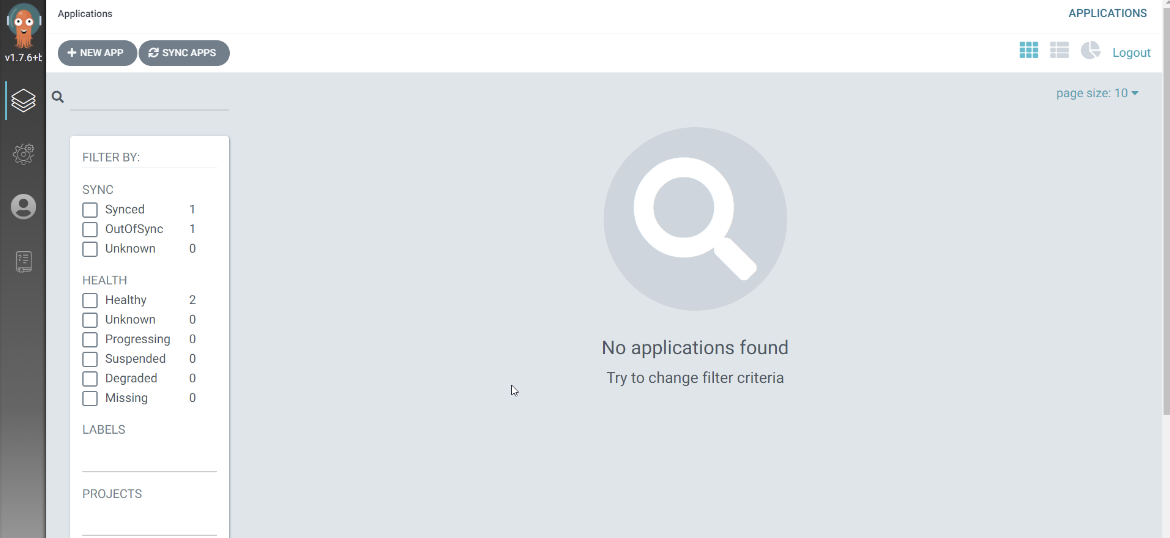
- Navigate to User Info and verify Group ID. Groups will have your group’s Object ID that you added in the
Setup permissions for Entra ID Applicationstep.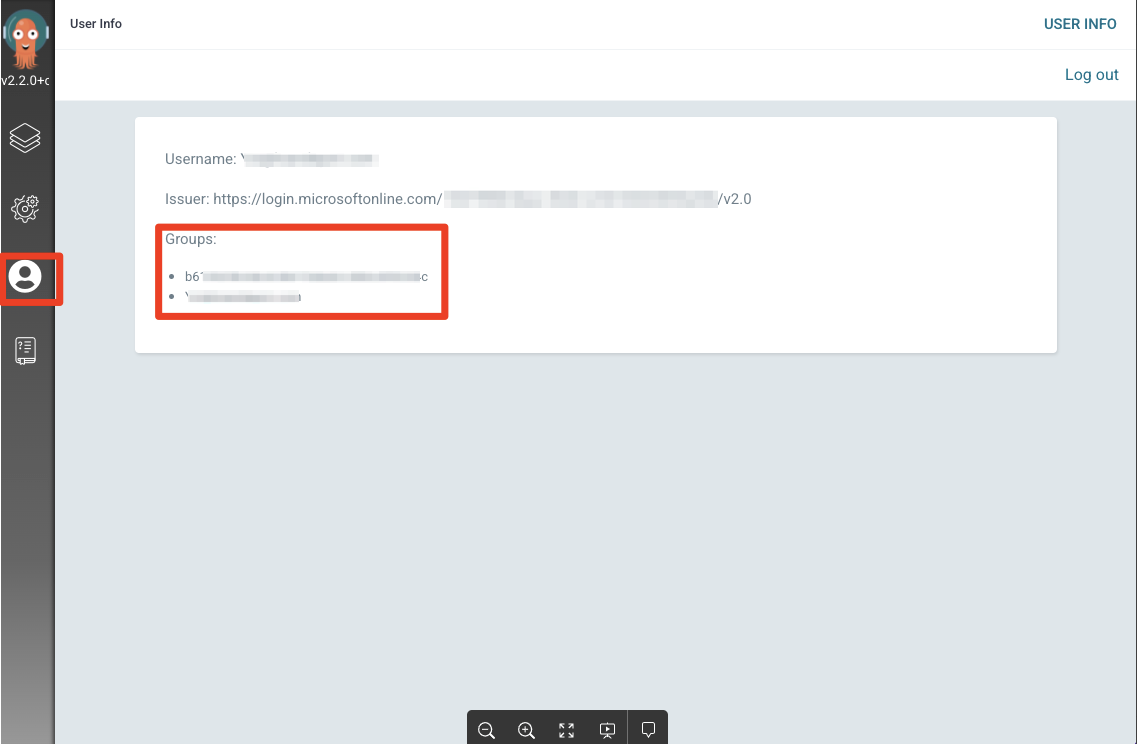
Log in to ArgoCD using CLI
-
Open terminal, execute the below command.
argocd login <my-argo-cd-url> --grpc-web-root-path / --sso -
You will see the below message after entering your credentials from the browser.
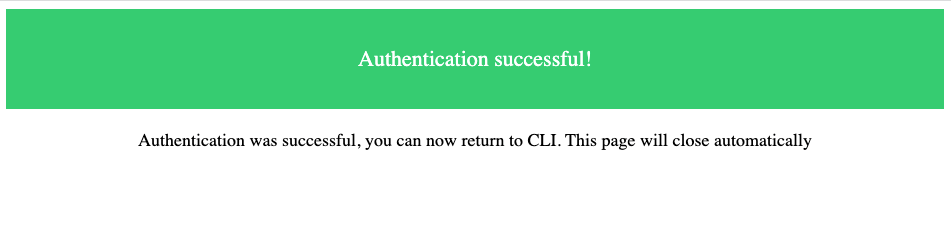
- Your terminal output will be similar as below.
    WARNING: server certificate had error: x509: certificate is valid for ingress.local, not my-argo-cd-url. Proceed insecurely (y/n)? y
    Opening browser for authentication
    INFO[0003] RequestedClaims: map[groups:essential:true ]
    Performing authorization_code flow login: https://login.microsoftonline.com/XXXXXXXXXXXXX/oauth2/v2.0/authorize?access_type=offline&claims=%7B%22id_token%22%3A%7B%22groups%22%3A%7B%22essential%22%3Atrue%7D%7D%7D&client_id=XXXXXXXXXXXXX&code_challenge=XXXXXXXXXXXXX&code_challenge_method=S256&redirect_uri=http%3A%2F%2Flocalhost%3A8085%2Fauth%2Fcallback&response_type=code&scope=openid+profile+email+offline_access&state=XXXXXXXX
    Authentication successful
    'yourid@example.com' logged in successfully
    Context 'my-argo-cd-url' updated
You may get an warning if you are not using a correctly signed certs. Refer to Why Am I Getting x509: certificate signed by unknown authority When Using The CLI?.
Domain hint (optional)
For Microsoft identity platforms, you can set domainHint in oidc.config to provide a domain hint during sign-in.
When configured, Argo CD adds domain_hint=<value> to the authorization request sent to Microsoft.
This can reduce account discovery prompts in multi-tenant or federated environments.
- Field:
domainHint - Type:
string - Required: No
- Default: empty (parameter is not sent)
Example:
apiVersion: v1
kind: ConfigMap
metadata:
  name: argocd-cm
  namespace: argocd
data:
  oidc.config: |
    name: Microsoft
    issuer: https://login.microsoftonline.com/<tenant-id>/v2.0
    clientID: <client-id>
    clientSecret: $oidc.microsoft.clientSecret
    requestedScopes: ["openid", "profile", "email", "groups"]
    domainHint: contoso.com